Can You Really Create an Audiobook on iPhone?
Yes. Modern AI voice generation happens server-side. Your iPhone handles the creative workflow -- organizing chapters, selecting voices, and directing performance. The processing power lives in the cloud, which means any recent iPhone is powerful enough to produce professional-quality audiobooks.
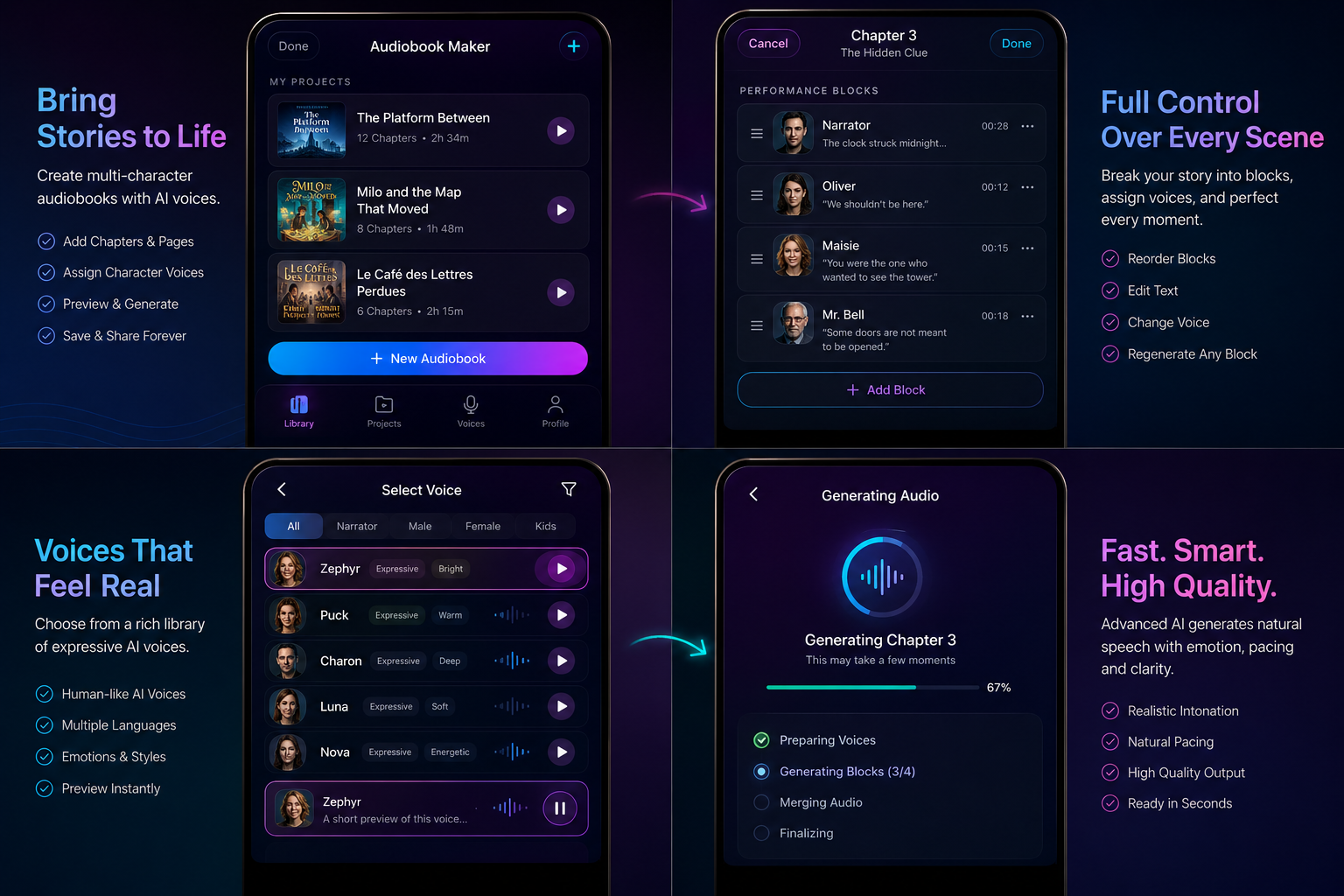
VoiceOverMaker gives you the complete audiobook creation toolkit: chapter management, a library of 400+ voices, multi-character casting, expressive direction controls, and one-tap generation. Everything you need to go from raw manuscript to finished audiobook without leaving your phone.
1Prepare Your Manuscript Text
Copy your manuscript from Notes, Google Docs, Pages, or any text source. Clean up formatting -- remove headers, page numbers, and any markup that is not part of the actual text. Plain text works best for audiobook generation.
If your manuscript is long, consider breaking it into individual chapter files before you start. This makes the import process smoother and keeps each chapter organized from the beginning.
2Create a New Audiobook Project
Open VoiceOverMaker and tap "New Audiobook" to create your project. Give it a name that matches your book title. This becomes the container for all your chapters, voice assignments, and generated audio.
3Divide Into Chapters and Pages
Break your manuscript into logical sections. Each chapter can contain multiple pages, letting you organize even lengthy novels into manageable pieces. The chapter structure also makes it easier to generate and review audio in focused segments rather than tackling the entire book at once.
4Choose Your Narrator Voice
Browse over 400 voices available in the voice library. Filter by language, gender, and style. Preview each voice before committing to hear how it handles your specific text.
Choose a narrator voice that matches the tone of your book. A thriller needs a different energy than a children's story. Spend time here -- the narrator voice sets the foundation for your entire audiobook.
5Add Character Voices
This is where your audiobook comes alive. Assign different voices to dialogue sections. Build your cast from the voice library -- give each character a distinct voice that reflects their personality, age, and role in the story. Learn more about multi-character audiobook creation with AI voices.
6Write Performance Direction
Add expressive direction to control how the AI delivers each line. You can specify tone -- calm, dramatic, whispered, excited, sarcastic. You can also control pacing, emphasis, and emotional weight. This is your director's chair.
7Generate and Preview
Generate audio for individual blocks or pages. Listen with headphones for the best quality assessment. Pay attention to pacing, pronunciation, and emotional delivery. This preview step lets you catch issues early before generating the full chapter.
8Fix What Needs Fixing
Regenerate specific blocks that need adjustment. Change the voice direction, try a different voice, or adjust pacing. You only need to regenerate the sections that need work -- everything else stays intact.
9Generate Complete Chapters
Once you are satisfied with the direction and voice assignments for a chapter, generate the remaining sections. The AI maintains consistency across the chapter, keeping character voices and pacing steady throughout.
10Save and Share
Export your finished audiobook directly from your iPhone. Share via AirDrop, upload to cloud storage, or distribute to audiobook platforms. The audio is yours to use however you want -- commercial distribution included.
Continue on iPad
For longer editing sessions, pick up the same project on iPad. The larger screen gives you more room to manage chapters, review waveforms, and fine-tune voice assignments. Your project syncs seamlessly between devices, so you can start on iPhone and finish on iPad without losing any work.
Why Mobile Audiobook Creation Matters
The best creative tool is the one you have with you. With VoiceOverMaker on iPhone, you can create audiobooks anywhere -- during your commute, at a coffee shop, on the couch. No equipment needed. No studio booking. No coordination with voice actors.
Mobile audiobook creation also means faster iteration. Had an idea for a better character voice at 11pm? Open the app and try it immediately. Want to regenerate a chapter during your lunch break? Done. The friction between idea and execution drops to nearly zero.
For self-published authors, this changes the economics of audiobook production entirely. Learn more about the complete workflow for self-published authors or read our guide on turning any book into an audiobook with AI.