iOS App • 50+ Languages
Translate, Dub and Subtitle Videos With AI
Take one video and reach audiences in 50+ languages. AI-powered dubbing, voice changing, subtitles, and auto-narration — all on your iPhone and iPad.
Download on App Store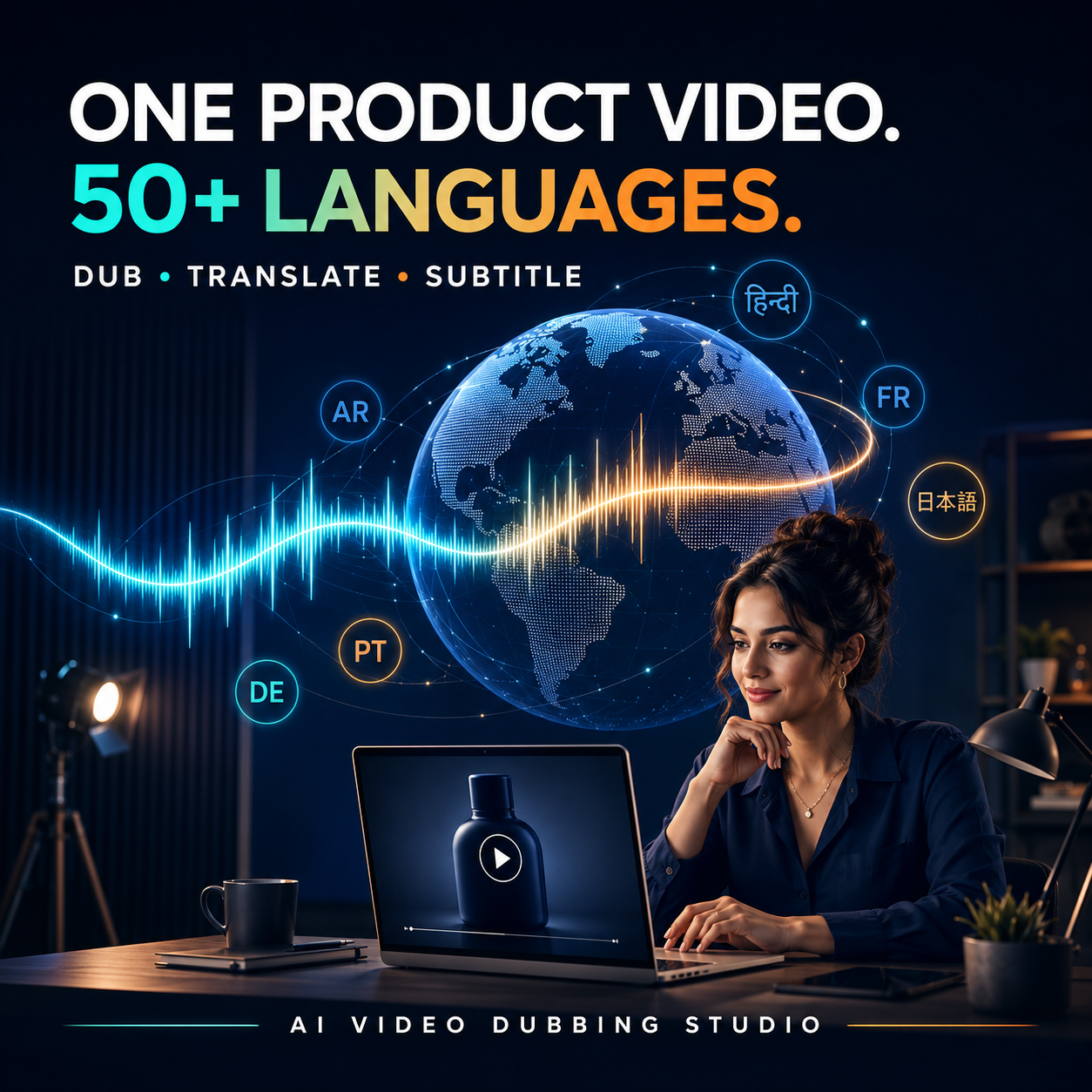
Take one video and reach audiences in 50+ languages. AI-powered dubbing, voice changing, subtitles, and auto-narration — all on your iPhone and iPad.
Download on App Store
One app, four engines. Pick the mode that fits your project.
Replace the voice in any video while keeping the original language. Choose from 60+ AI voices — male, female, various accents and tones — and produce a polished result in minutes.
Transcribe your video, translate the script into any of 50+ languages, and generate natural-sounding audio in the target language. Full end-to-end dubbing from a single tap.
Auto-generate accurate subtitles from speech, edit the text, customize fonts and colors, and burn them directly into the video. Script-aware fonts ensure every language renders perfectly.
Got silent footage? AI analyzes the visual scenes, writes a contextual voiceover script, and generates narration — turning any silent clip into a fully narrated video.
Translations that run too long or too short break the viewing experience. Smart Rewrite automatically adjusts phrasing so the dubbed audio matches the original timing — no awkward pauses, no clipped endings. The meaning stays faithful while the delivery stays natural.
From social media creators to enterprise training teams — one video becomes content for every market.
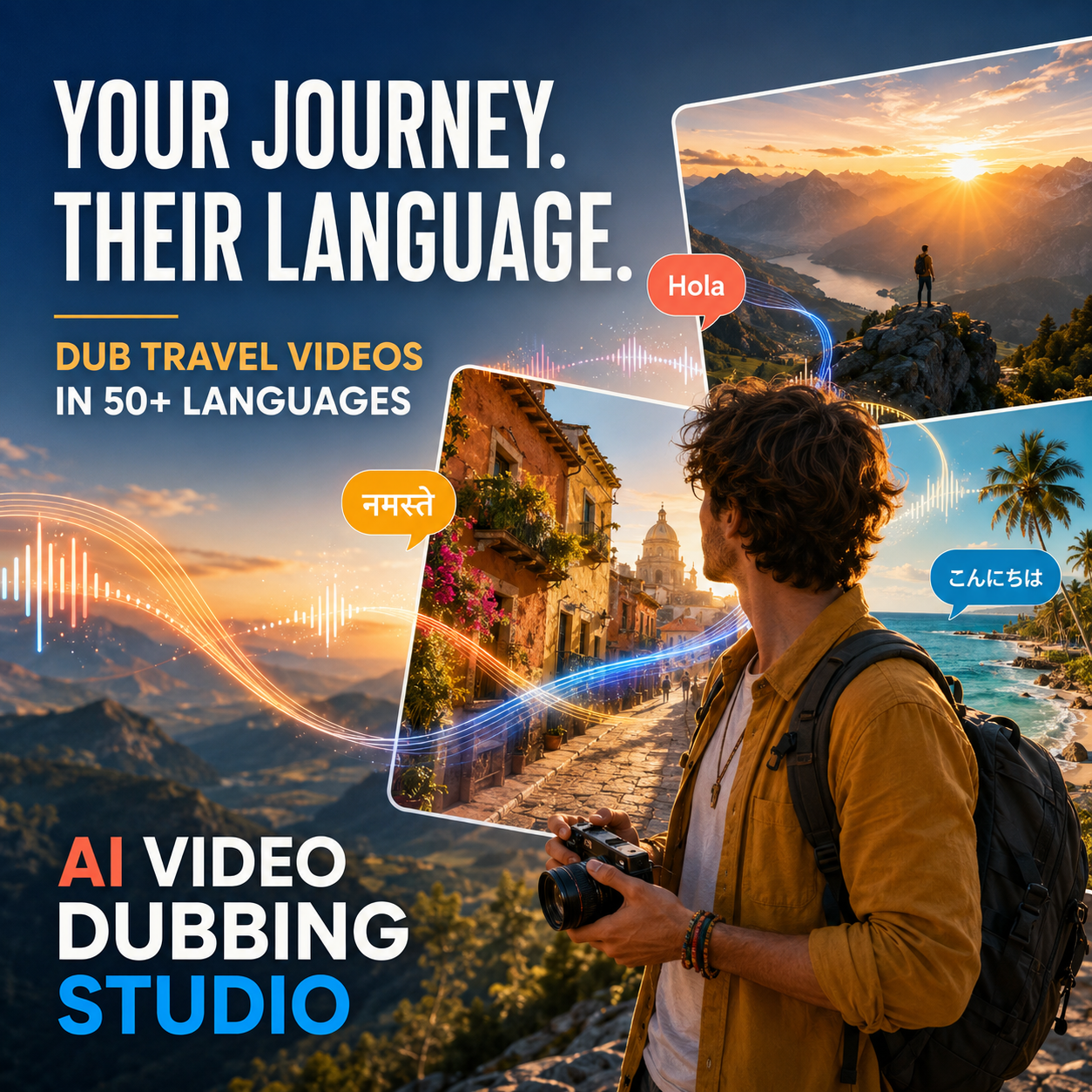
Dub YouTube videos, reels, and TikToks into multiple languages to grow your audience across borders without re-recording.
Localize product demos, pitch decks, and marketing videos for international clients and regional offices.
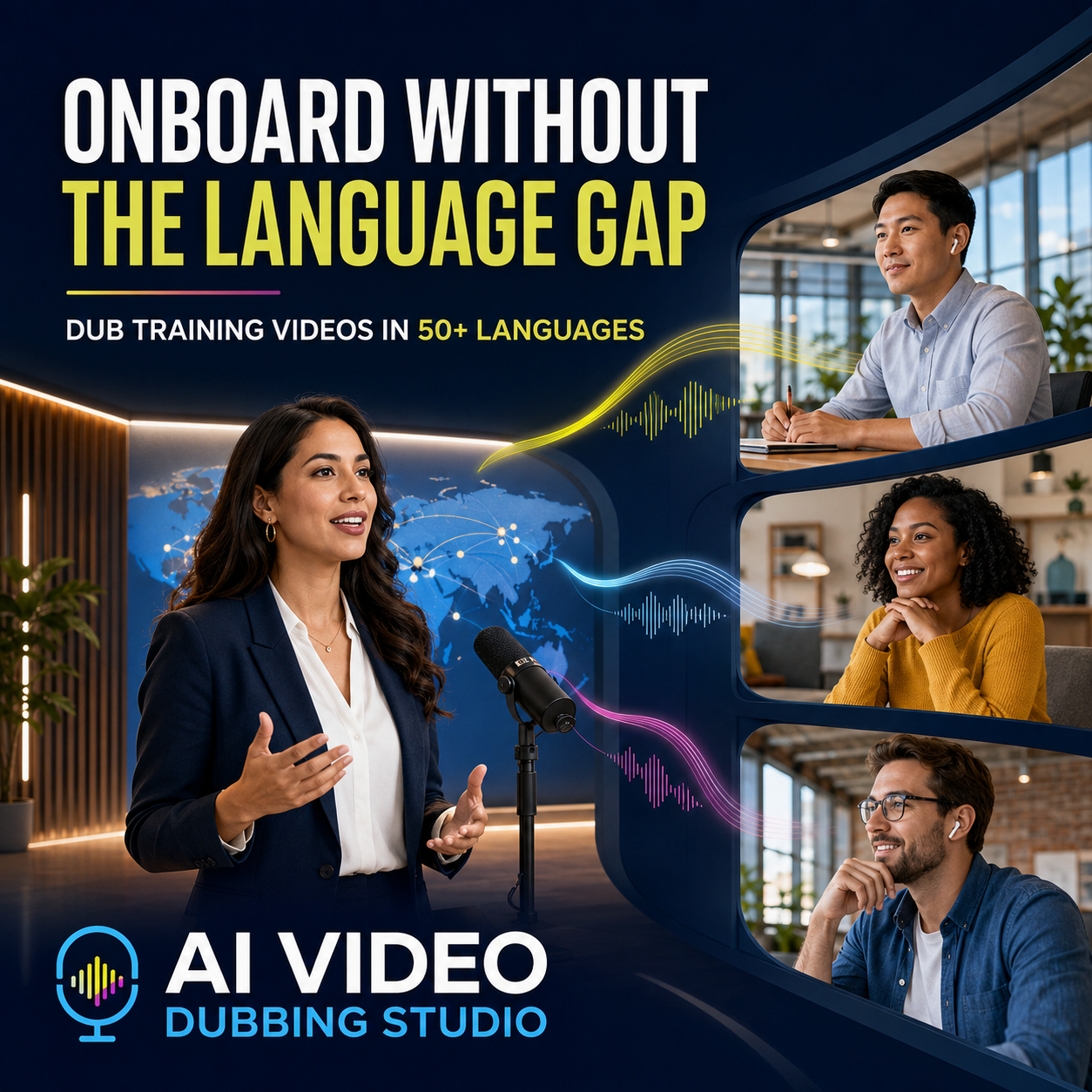
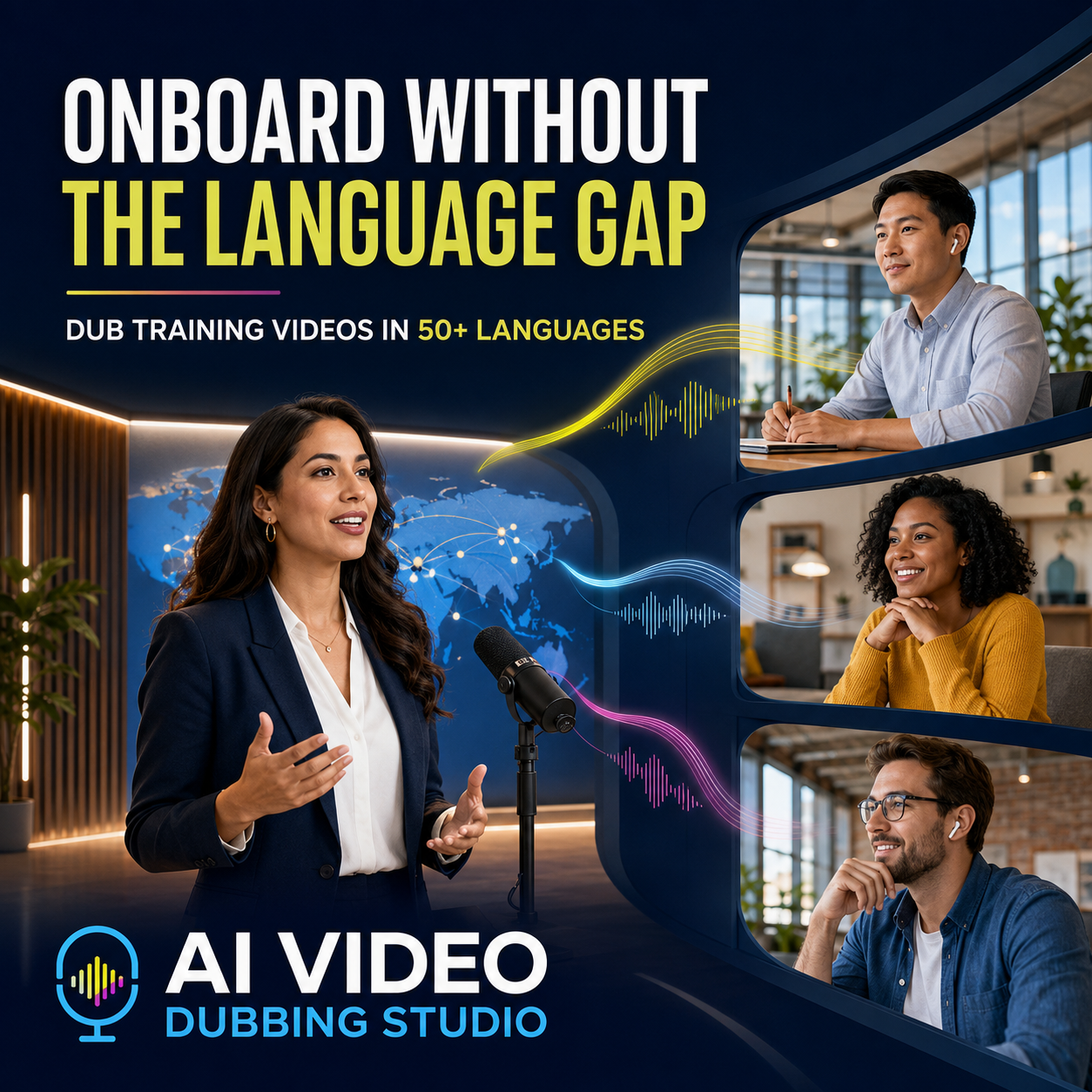
Translate course material and lectures so students worldwide can learn in their own language.
Add multilingual narration to property tours and listing videos to reach international buyers.
Quickly subtitle and dub short-form content for cross-posting to multilingual audiences on every platform.
AI does the heavy lifting, but you have final say over every detail.
Review and refine auto-generated subtitles before burning them in. Fix names, jargon, or phrasing.
Works with any aspect ratio — vertical reels, horizontal YouTube, square posts — no cropping required.
Export at the same resolution as your source video. No quality loss, no unwanted compression.
Yes. The Dubbing Engine transcribes your video, translates the text, and generates new audio in the target language — all automatically. Just pick your source and target language and tap Dub.
AI Video Dubbing Studio supports more than 50 languages for dubbing and translation, including Spanish, French, German, Hindi, Japanese, Korean, Arabic, Portuguese, Chinese, and many more.
Absolutely. Use Subtitle Studio to transcribe and translate captions, then burn them into the video while keeping the original audio track unchanged.
Smart Rewrite automatically adjusts the translated script so the dubbed speech fits the original video timing. It prevents audio from running too long or ending too early while preserving the meaning of the translation.
Yes. Auto Narrate uses AI to analyze the visual content of your video, writes a contextual voiceover script, and generates the narration automatically — perfect for B-roll, property tours, or product demos.
The app exports at your original video resolution. There is no downscaling or quality loss during the dubbing, subtitle, or narration process.
Yes. After auto-generating subtitles, you can review and edit the text, adjust timing, change fonts and colors, and reposition captions before burning them into the video.
Dub, subtitle, and narrate your videos in 50+ languages — directly from your iPhone or iPad.
Download on App Store